> For the complete documentation index, see [llms.txt](https://docs.spexi.com/llms.txt). Markdown versions of documentation pages are available by appending `.md` to page URLs; this page is available as [Markdown](https://docs.spexi.com/fly-and-earn/how-to-fly-a-mission.md).
# How to Fly a Mission
Once you have selected a mission, the Spexi app guides you through the entire capture process. Mission flights are automated and standardized, so your primary role is to ensure safe operation. Here’s what you need to do to fly:
{% stepper %}
{% step %}
### Choose a Safe Launch Location
Before starting the mission:
* Confirm you are authorized to fly in the local airspace – pilots are responsible for ensuring safe, legal operations for all missions. The presence of a LayerDrone mission does not guarantee airspace legality or operational safety.
* Select a safe takeoff and landing area within or near your chosen Spexigon, with clear surroundings. Depending on the location and environment, you may be able to fly several Spexigons from one location. However, in other cases, you may need to move around in order to maintain line of sight and connection with your drone.
* Check weather conditions and visibility. High cloud cover is generally not a problem for drone operations, as long as pilots fly below the clouds. Avoid fog or very low cloud cover entirely, and if it’s raining, snowing, or too windy, you should choose a different time to fly.
* Ensure your batteries are sufficient for the mission. Adverse weather conditions can affect battery performance.
* Power on your drone, controller, and mobile device
{% hint style="warning" %}
**You are fully responsible for operating safely and legally at all times**
{% endhint %}
{% endstep %}
{% step %}
### Connect to the Spexi App
Open the Spexi app and connect your supported DJI Mini drone using a compatible phone-based controller.
Once the drone is connected and ready, the app will allow you to begin the mission.
{% endstep %}
{% step %}
### Press “FLY” to Begin
When you are ready, press “FLY” in the Spexi app. You can start the mission from the ground after takeoff or while already airborne. Once initiated, the app takes control of the mission sequence, though pilots can always take manual control of the drone if needed for safety by:
* Pressing the Return to Home (RTH) button on the controller
* Switching flight modes
* Pulling down on the left control stick
If you need to take over manual control, you can pick up where you left off, as long as you’re within two hours. The Spexi App will give you the option to continue flying the mission you were on.
Spexi mobile app
{% endstep %}
{% step %}
### Automated Terrain-Following Capture
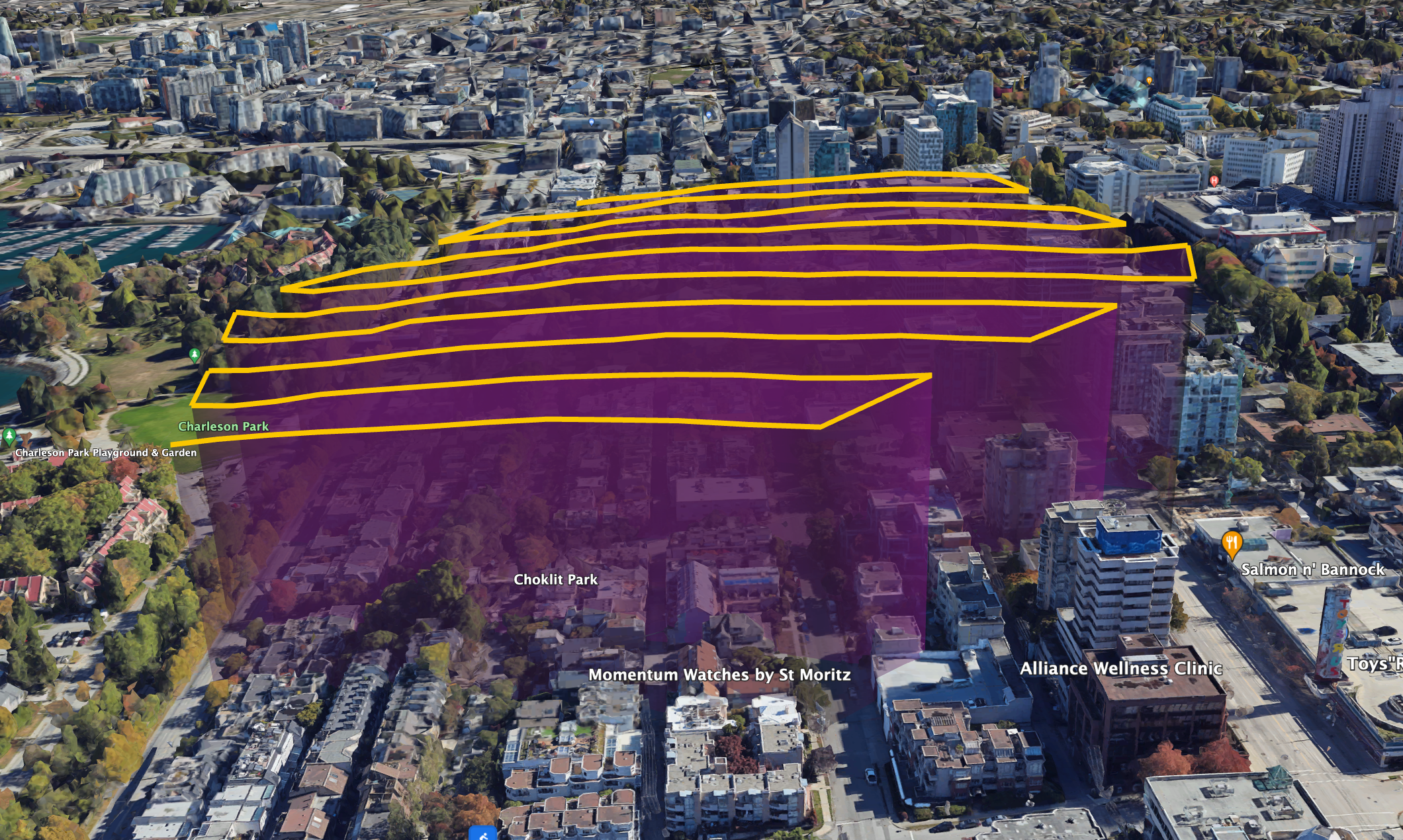
After launch, the Spexi app runs a pre-programmed flight pattern over the Spexigon. Missions are standardized and automated, including terrain following to maintain a consistent altitude above ground level (AGL). This ensures imagery is captured at the correct height even when terrain changes.
Spexigon displaying changing flight path altitudes for automated terrain-following capture
You do not need to:
* Create waypoints or manually plan the route.
* Control the flight path
You must still:
* Maintain visual line of sight
* Monitor the drone and the airspace
* Be ready to take control if needed
Obstacle avoidance is not active during Spexi missions.
What you'll see when flying with the Spexi App
{% endstep %}
{% step %}
### Fly More Missions
After completing a mission you can continue flying additional nearby spexigons. Fly as many missions as you like! The Spexi App will close missions outside of “flying hours” when the sun angle creates too much shadow.
{% endstep %}
{% endstepper %}
{% embed url="" %}
%20(1).jpg)